Density of states #
This page documents the Density of states (DOS) workflow in detail, including required files, parsing behavior, plain and projected plotting, projection controls, projection tables, axis behavior, and export.
The workflow is code-agnostic: upload the output files from your DFT simulation, parse,
tune your plot settings, and export a publication-ready figure.
Where useful, this page uses VASP file names (DOSCAR, POSCAR) as examples.
For full styling controls (figure, title, axes, grid, legend, etc.), see Plot Settings.
_colormap.svg)
_colormap_dark.svg)
Input and parsing #
DOS plotting requires DOS data and optionally structural metadata.
In this documentation, VASP files are used as an example. Because DOSCAR contains the
Fermi energy, the VASP page does not include a Fermi-energy input field.
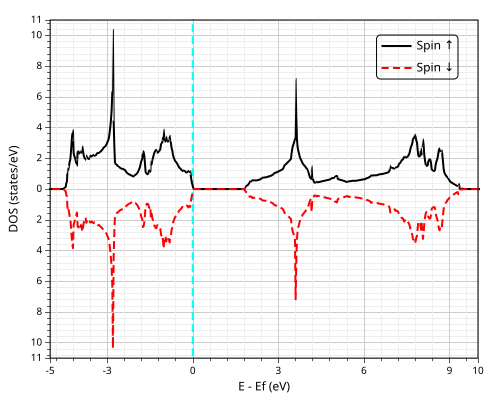
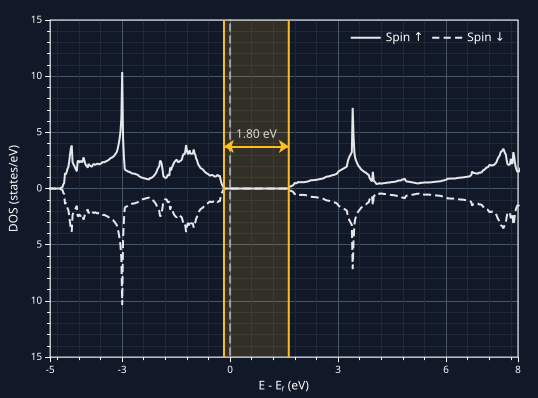
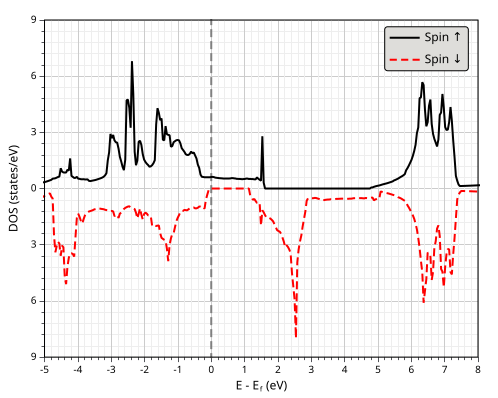
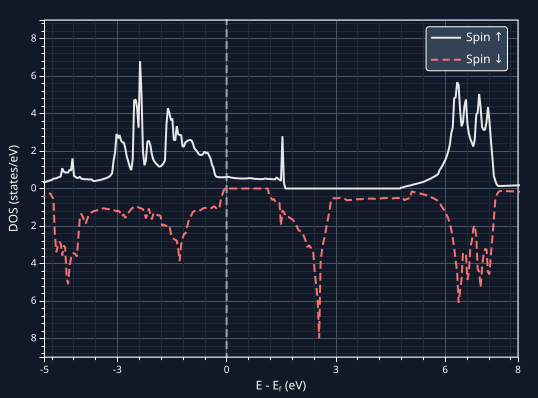
For spin-polarized DOS, spin-down values are mirrored on the negative side in the standard DOS layout.
Although this section resembles uploading files to a website, your files never leave your computer. Parsing and plotting run locally in your browser. Below is the list of files currently required by the web app to generate DOS figures.
| File | Required | Purpose |
|---|---|---|
DOSCAR
|
Yes | Total and projected density-of-states values used for plain and projected DOS plotting, and the Fermi level reference used by DOS mode (VASP example). |
POSCAR
|
No | Provides species/count metadata for grouped atom tables (VASP example). |
After selecting the files, click Parse to process the data.
DOS plot options #
Plot plain DOS: show the total DOS curve from parsed DOS arrays.
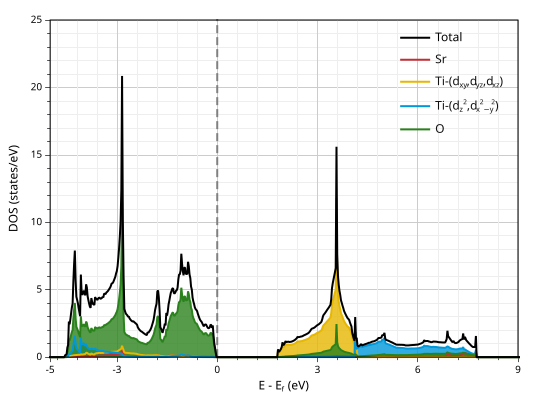
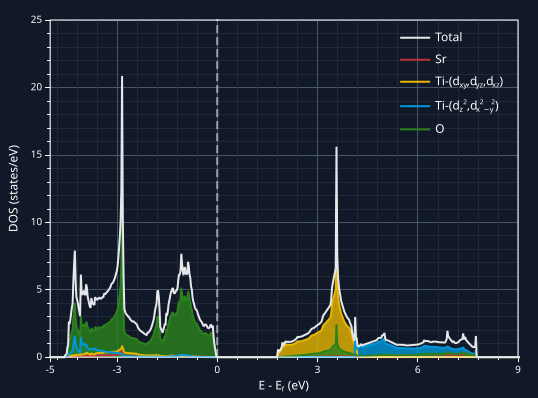
Plot projected DOS: show projected DOS curves based on the projection selections. This mode requires projected DOS data and at least one projection.
Figure Orientation: select the orientation of the figure. Horizontal to plot energy on x, or Vertical to plot energy on y.
Smoothing: adjust line smoothing from 0 to 1; use 0 for no smoothing and 1 for maximum smoothing. ECharts applies smooth line interpolation (Bezier-style) using this factor.
Line/marker panel
The Line/Marker panel in General Options controls the style of plain DOS traces.
Line: choose the line style (Solid,
Dashed, or Dotted).
Width: customize the plot lines line width by modifying this field. The units are pixels.
Marker: choose the marker type (None,
Circle, Square,
Triangle, or Diamond).
Size: set marker size in pixels.
Color: customize the line and marker color using the color picker. The appearance of the color picker is defined by the browser. In Firefox, to select a custom color you need to click on the “+” icon.
Opacity: set the opacity of line and marker style to any value between 0 and 1, where 0 means fully transparent and 1 means fully opaque.
Plot Order: control drawing stack priority; higher values are
drawn on top of lower values, while auto keeps default ordering.
Legend panel
The Legend Panel in General Options controls the legend label text and label style for plain DOS traces.
Include: enable or disable that trace in the legend. When unchecked, the corresponding legend entry is hidden.
Label: set the legend label text for the trace.
Color: customize the legend label color using the color picker. The appearance of the color picker is defined by the browser. In Firefox, to select a custom color you need to click on the “+” icon.
Weight: customize the font weight using this dropdown. The options correspond to font-thin, font-extralight, font-light, font-normal, font-medium, font-semibold, font-bold, font-extrabold, and font-black, which map to 100, 200, 300, 400, 500, 600, 700, 800, and 900, respectively. Most fonts only provide a subset of these weights (typically normal and bold). You can see examples of fonts that support all weights in Google Fonts.
Style: customize the font style as normal or italic.
Fermi level panel
The Fermi level panel in General Options controls the horizontal Fermi reference line drawn in the plot.
Show fermi: enable or disable the Fermi reference line.
Shift: apply an additional energy offset before plotting.
The displayed energy reference follows
E - (EF + shift), and the shift unit follows the selected
energy unit in the Units panel.
In DOS, the base Fermi reference is read from the parsed DOS data.
Line, Width, Color: control the visual style of the Fermi line.
Opacity: set the opacity of fermi line to any value between 0 and 1, where 0 means fully transparent and 1 means fully opaque.
Plot Order: control rendering priority relative to other traces and overlays.
Bandgap panel
The Bandgap panel in General Options controls the guide lines and annotations used to visualize the gap.
Show bandgap: enable or disable bandgap guides and labels.
Color, Line, Width: control the style of the bandgap guide lines.
Length: set guide extent to none,
partial, or full.
Fill: choose how the gap region is rendered:
none, hash, or solid.
Arrow: show or hide directional arrow markers.
Value: show or hide the numeric gap label in the selected energy unit.
In DOS, bandgap guides are computed from DOS-based edge detection in the current view and respect the selected figure orientation.
Projected DOS workflow #
Projected plotting requires projected data and at least one projection card. If projected data is unavailable, adding projections is disabled.
+ Add Projection: add a new projection card with projection-table selection and style controls.
First projection behavior: first-time projection creation enables projected mode; plain and projected curves can still be rendered together afterward.
Projection scope: each projection has independent projection selections, label controls, and visual styling.
Projection removal: remove projections individually without affecting other projection cards.
Projection cards #
Each projection has a set of control panels that map directly to options consumed by the plotting pipeline.
Coloring panel
Color / Colormap: choose between a single solid color and colormap-based rendering for each projection.
Color: when Color is selected, use the color picker to set the projection color.
Colormap: when Colormap is selected, choose the palette used to map projected values.
Reverse: reverse the colormap direction.
Opacity: control projection transparency from 0 to 1.
Plot Order: control drawing stack priority; higher values are drawn on top.
Line and marker panel
Line: select line style from None, Solid, Dashed, and Dotted.
Width: set line width in pixels. This field is disabled when Line is None.
Marker: select marker type from None, Circle, Square, Triangle, and Diamond.
Size: set marker size in pixels. This field is disabled when Marker is None.
Fill under the curve: for DOS projections in solid-color mode, fill the area under each projected curve.
Spins/values panel
Spin ↑ / Spin ↓: select which spin channels are included for this projection. This option is available only for spin-polarized calculations.
vmin: set the lower bound for colormap normalization.
vmax: set the upper bound for colormap normalization.
Normalize: this does not perform a quantum-mechanical normalization. It only rescales the selected projection values so they add up to one for plotting. Projection values depend on the selected projection basis and projection radii, and the selected set may be incomplete.
Legend panel
Include: enable or disable that projection in the legend. When unchecked, the projection legend entry is hidden.
Legend Label: enter custom legend text for the projection. Leave this field empty to use the auto-generated label from your projection selection.
Color: customize the legend label color using the color picker. The appearance of the color picker is defined by the browser. In Firefox, to select a custom color you need to click on the “+” icon.
Weight: customize the font weight using this dropdown. The options correspond to font-thin, font-extralight, font-light, font-normal, font-medium, font-semibold, font-bold, font-extrabold, and font-black, which map to 100, 200, 300, 400, 500, 600, 700, 800, and 900, respectively. Most fonts only provide a subset of these weights (typically normal and bold). You can see examples of fonts that support all weights in Google Fonts.
Style: customize the font style as normal or italic.
Projection table (atoms, orbitals, and spin channels) #
The projection table defines which projected DOS components are summed for each projection. Table structure adapts to available metadata and projected layout.
Rows: represent atoms directly, or species-grouped atoms when parsed structure metadata is available and consistent.
Columns: represent orbital channels and, when applicable, magnetization channels.
All: use row-level and species-level bulk selection. Checkboxes become indeterminate when only part of a row/species is selected.
Basic projection table when a structure file (e.g. POSCAR) is not available. In this case, atoms are labeled by their order in the DOS output file (e.g. DOSCAR).
Species-grouped table when structure data is present and consistent with projected DOS blocks. To ensure consistency, use files from the same simulation.
Additional magnetization channel columns appear,
enabling direction-resolved projected DOS analysis.
If none of mx, my, or mz is selected,
the orbital total projection is used. If any of them is selected, the plotted contribution follows the
selected magnetization channel(s).
Axis and rendering #
Figure sizing: in vertical orientation, automatic sizing swaps figure dimensions to preserve layout.
Series composition: plain and projected series can be rendered together, and legend labels are built from projection selections and spin context.
Navigation #
Use the quick ribbon controls above the chart to manage interaction behavior while inspecting and presenting figures.
Dark Mode: toggle only the chart styling mode to view the same data in light and dark
figure themes without changing the rest of the page style.
To toggle page dark/light mode, use the top-right button:
 /
/
 .
.
Tooltip: control whether hover readouts and axis-pointer guides are shown. Tooltips are very helpful for inspecting projection contributions. While the axis pointer guides marks the exact x and y position you are of the mouse pointer. Below is an example of a tooltip that appears when you hover over a band segment.
Drag: enable click-and-drag panning of the current zoom window. Use this option to inspect adjacent regions without resetting the zoom.
Zoom Sliders: toggle the axis zoom sliders on or off for interactive zoom control.
Zoom Scroll: enable mouse scroll-wheel zoom interactions. For best results, hold Ctrl while scrolling. You can also hold Ctrl without enabling Zoom Scroll to quickly zoom in and out around the mouse focus.
Zoom Window: enable zooming into a specific rectangular region in a single action.
Plot and export #
Use Plot to render, Reset to clear, and Download to export. Export supports PNG, JPEG, and SVG.
Download behavior uses an export helper that requests the required renderer per format (SVG renderer for SVG export; canvas renderer for PNG/JPEG).
If you download SVG, the figure and element positions remain fully editable when opened in software such as Adobe Illustrator, Inkscape, or GIMP.
Warnings and errors #
Invalid settings: "Some settings are invalid. Please review highlighted fields before plotting." This appears when one or more options fail validation. Correct highlighted inputs, then run Plot again.
Missing DOS input: "Please select a DOSCAR file first." DOSCAR is required for DOS parsing. Upload it, then click Parse.
Parse failure: "Failed to parse DOSCAR." If available, a parser-specific detail message is also shown. Verify file integrity and ensure the file belongs to the same calculation set as related inputs.
Parse required: "Parsing required: click Parse first." This appears when plotting is requested before a successful parse cycle.
No plot mode selected: "Select at least one plotting mode: plain or projected." Enable at least one plotting checkbox before rendering.
DOS data missing: "No DOS data available. Parse DOSCAR again." This means the plotting step has no usable DOS arrays in memory. Re-parse and retry.
Projected DOS without projections: "To plot projected DOS, add at least one projection. Otherwise, use plain DOS." Add one projection card or disable projected mode.
Projected DOS required: "Projected DOS data is required for projected DOS." If projected channels are unavailable in the parsed data, projected DOS cannot be computed.
Spin selection required: "Projection N: select at least one spin channel (Spin ∣↑⟩ or Spin ∣↓⟩)." Each active projection must keep at least one spin channel enabled.
Colormap restriction: "Plot blocked: when using multiple projections, all projections must use solid coloring. Only a single colormap projection is supported." Use solid color for multiple projections, or keep just one colormap projection active.
Label fallback warning: "Could not auto-build one or more DOS projection labels. Using fallback labels." This is non-fatal; plotting continues with generated fallback labels.
Export before plotting: "Plot DOS first, then export." Export options require an already-rendered figure.
Spin-toggle guard: "At least one spin channel must stay selected." The UI blocks empty-spin states to prevent invalid projection definitions.
Runtime plotting errors: "Failed to plot DOS: ..." This indicates an exception during plot build. Re-check parsed files and projection settings, then retry.