
Tutorial: Plotting projected EBS & DOS with solid-color projections #
This tutorial mirrors the projected-solid EBS and DOS workflows in one combined EBS & DOS layout.
Step 1: Upload files and parse #
In EBS & DOS mode, provide both band and DOS data before plotting. For VASP use PROCAR and DOSCAR (required), plus optional KPOINTS and POSCAR.
Review generated report cards #
After parsing, the page generates report cards that summarize key results. You can expect values such as bandgap, material type, Fermi value, lattice parameters, angles, volume, and density. If the simulation is spin-polarized and the bandgaps differ between channels, the report card shows separate Spin ↑ and Spin ↓ bandgap entries.
If you want this report in different units, use the Units panel in the right sidebar.
| Bandgap | 1.78 eV |
| Type | Semiconductor |
| CBM | Γ (0, 0, 0) |
| VBM | R (1/2, 1/2, 1/2) |
| Direct | False |
| Fermi | 3.27 eV |
| Bandgap | 1.82 eV |
| Type | Semiconductor |
| Fermi | 3.27 eV |
| a | 3.94 Å |
| b | 3.94 Å |
| c | 3.94 Å |
| α, β, γ | 90°, 90°, 90° |
| Volume | 61.26 ų |
| Density | 4.97 g/cm³ |
Step 3: Configure the bandgap tile #
You can use the Bandgap tile to display the band-gap annotation directly on the combined projected EBS & DOS figure.
Enable the annotation with Show bandgap. Then use Line style and
Line length to control guide lines, with length options None,
Partial, or Full. Use Fill style to set the region between
guides to None, Hash, or Solid.
You can also enable Show arrow and Show value to display transition direction and numeric gap value. In EBS & DOS mode, additional EBS and DOS checkboxes let you show the overlay on both subplots together, or only on one subplot.
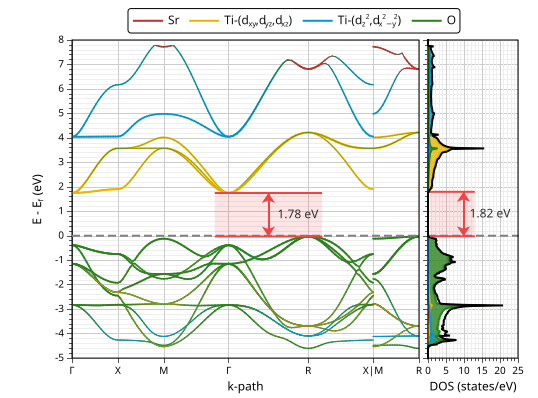
For this example, the bandgap style is set to Line length: Partial and Fill style: Hash.
Step 4: Limits and layout #
In EBS & DOS mode, the Limits panel has three sections two for x-axis and one for the shared y-axis:
EBS: X min and X max define the x-axis limits for the band-structure plot. You can set these limits using high-symmetry-point indices instead of exact k-point values. For example, for this k-path, setting X min = 0 and X max = 5 plots the range from Γ to X.
DOS: X min and X max for the density of states x-axis.
Shared: Y min and Y max for the common energy axis used by both subplots. In combined mode, the shared y-limits are driven by DOS so both panels remain aligned in energy. For this example we set the energy limits from -5 to 8 eV.
Navigation
Use the quick ribbon controls above the chart to manage interaction behavior while inspecting and presenting figures.
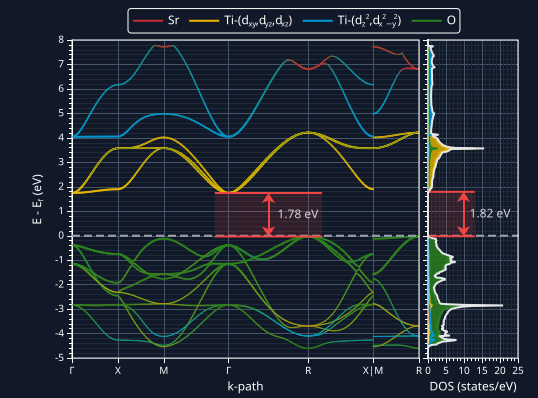
Dark Mode: toggle only the chart styling mode to view the same data in light and dark
figure themes without changing the rest of the page style.
To toggle page dark/light mode, use the top-right button:
 /
/
 .
.
Tooltip: control whether hover readouts and axis-pointer guides are shown. Tooltips are very helpful for inspecting projection contributions. While the axis pointer guides marks the exact x and y position you are of the mouse pointer. Below is an example of a tooltip that appears when you hover over a band segment.
Drag: enable click-and-drag panning of the current zoom window. Use this option to inspect adjacent regions without resetting the zoom.
Zoom Sliders: toggle the axis zoom sliders on or off for interactive zoom control.
Zoom Scroll: enable mouse scroll-wheel zoom interactions. For best results, hold Ctrl while scrolling. You can also hold Ctrl without enabling Zoom Scroll to quickly zoom in and out around the mouse focus.
Zoom Window: enable zooming into a specific rectangular region in a single action.
Step 5: Add projections and choose solid styling #
Click Add Projection to create a projection card. The app automatically enables Plot projected bands and Plot projected DOS; you can re-enable plain plotting if you want overlays.
Each projection card defines one projected contribution used by both EBS and DOS in combined mode. After adding a projection, select the atom, orbital, and (if applicable) spin entries in the projection table for exactly the contribution you want to visualize.
In Solid color mode, you can add multiple projections and assign each one its own color and styling. This is useful for comparing several chemical or orbital channels in the same combined EBS & DOS figure.
In each projection card, set coloring mode to Solid color and choose a distinct color for that contribution. Then configure line and marker behavior using the dedicated EBS Line/Marker and DOS Line/Marker sections.
In EBS Line/Marker, enable Value-scaled width/size to map projection strength to visual thickness and marker size: larger projected weights are drawn thicker/larger, while smaller weights are drawn thinner/smaller. In DOS Line/Marker, use Fill under the curve to shade the area below each projected DOS trace, which helps separate overlapping channels and improves readability in dense regions.
In the Coloring panel, Opacity sets transparency for the full projection trace
(0 = fully transparent, 1 = fully opaque), which is useful when several projections overlap. Use
Plot Order to control stacking: projections with higher values are drawn on top of lower
values, while auto keeps the default app ordering.
For meaningful comparisons across multiple projections, keep key style scales consistent across cards, especially line width and marker size. If one projection uses a much larger base size than another, visual differences can come from styling rather than the actual projection weights.
After defining projections, click Plot to render the projected EBS & DOS figure. If needed, refine line style, marker type, opacity, and labels in each card before plotting again.
Step 6: Example projected combined plot #
This example uses four projections in one combined figure: Sr, Ti t2g, Ti eg, and O. The same projection definitions drive both the EBS and DOS subplots, so label and color consistency stays aligned.
Keep line and marker scales consistent between projection cards to make visual comparison meaningful across channels. For this example, we keep core style values comparable and use distinct solid colors to separate contributions.
After confirming the table selections and projection styles, click Plot to generate the final projected EBS & DOS solid-color figure.
Step 7: Show and tune the legend #
Legend labels are auto-generated from projection selections. If you want custom text, use each projection card's Legend Label panel. The same panel also controls per-projection label styling such as color, weight, and style.
The global Legend panel in the right sidebar controls figure-level legend placement and
style.
You can choose preset locations (Upper Right, Upper Center,
Center,
Lower Left) or switch to Custom and set
Loc. X/Loc. Y.
You can also tune orientation, item length/width, marker count/size, gap, background, font size, border,
and corner radius.
In this example, to place the legend centered above the figure, we first set the position to
upper center and click Plot so the app generates the automatic
coordinates for that position. Then, we set the position to custom and use the
already-filled Loc X. and Loc Y. values as a guide to move the legend
to the desired location.
During analysis, you can hide or unhide individual projections by clicking legend entries.
Step 8: Customization and styling #
For axis, legend, font, colors, and other appearance controls, use the right sidebar and see the full settings reference in Plot Settings.
Step 9: Export the figure #
When your figure is ready, click the download button in the chart toolbar to export it. Use this to save a clean image for reports, slides, or publications.
If you download SVG, the figure and element positions remain fully editable when opened in software such as Adobe Illustrator, Inkscape, or GIMP.