

Tutorial: Plotting projected density of states with solid colors
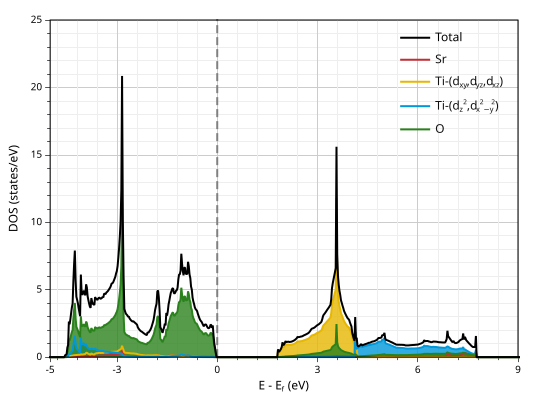
In this tutorial for SrTiO3, we show how to upload DOS files, define projections, and generate, customize, and export projected DOS using solid-color styling.
Step 1: Upload DOS files and parse #
The first step is to upload the required files from your DFT simulation. The upload panel indicates which files can be provided. For VASP DOS, the Fermi energy is read from DOSCAR, so there is no separate Fermi-energy input in this mode.
After selecting files, click Parse to load the data.
Review generated report cards #
After parsing, the page generates report cards that summarize key results. You can expect values such as bandgap, material type, Fermi value, lattice parameters, angles, volume, and density. If the simulation is spin-polarized and the bandgaps differ between channels, the report card shows separate Spin ↑ and Spin ↓ bandgap entries.
If you want this report in different units, use the Units panel in the right sidebar.
| Bandgap | 1.82 eV |
| Type | Semiconductor |
| Fermi | 3.27 eV |
| Volume | 61.26 ų |
| Density | 4.97 g/cm³ |
| a | 3.94 Å |
| b | 3.94 Å |
| c | 3.94 Å |
| α, β, γ | 90°, 90°, 90° |
Step 2: Limits and navigation #
Limits
Begin by generating a baseline projected-DOS figure, then use the Limits panel to define the energy interval for quantitative inspection. In this tutorial, set x min = -5 eV and x max = 9 eV.
If y min and y max are not specified, adaptive DOS scaling is applied. In this mode, DOS limits are derived from the projected intensity within the selected energy interval and are recomputed whenever the x-range is changed.
Navigation
Use the quick ribbon controls above the chart to manage interaction behavior while inspecting and presenting figures.
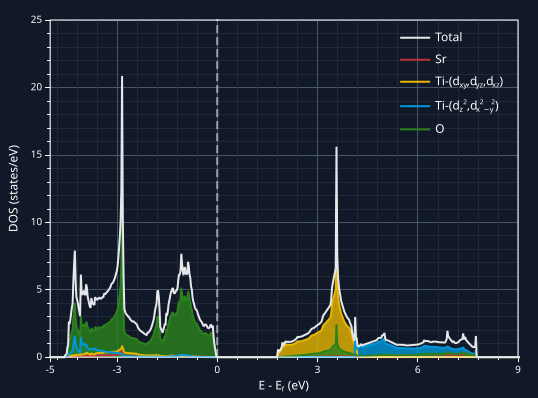
Dark Mode: toggle only the chart styling mode to view the same data in light and dark
figure themes without changing the rest of the page style.
To toggle page dark/light mode, use the top-right button:
 /
/
 .
.
Tooltip: control whether hover readouts and axis-pointer guides are shown. Tooltips are very helpful for inspecting projection contributions. While the axis pointer guides marks the exact x and y position you are of the mouse pointer. Below is an example of a tooltip that appears when you hover over a band segment.
Drag: enable click-and-drag panning of the current zoom window. Use this option to inspect adjacent regions without resetting the zoom.
Zoom Sliders: toggle the axis zoom sliders on or off for interactive zoom control.
Zoom Scroll: enable mouse scroll-wheel zoom interactions. For best results, hold Ctrl while scrolling. You can also hold Ctrl without enabling Zoom Scroll to quickly zoom in and out around the mouse focus.
Zoom Window: enable zooming into a specific rectangular region in a single action.
Step 3: Add projections and configure projected-style panels #
Click Add Projection to create a projection card. In projected-solid mode, the projection panels below mirror the live card controls, so style updates in the main DOS page carry over automatically.
The app automatically enables Plot projected DOS and disables Plot plain DOS after the first projection is added; you can re-enable plain DOS if you want overlays.
In Coloring, keep mode on Solid color. In Line/Marker, you can tune line/marker styling and use Fill under the curve to shade projected DOS contributions.
Step 4: Example projection choices for SrTiO3 #
In this example, we use four projections: one for Sr, two for Ti, and one for O.
For this example we selected the shine color pallet: Sr in Red (#c12e34) ; Ti
t2g (dxy, dyz, dxz)
in Yellow (#e6b600); Ti eg (dz2,
dx2-y2) in Blue (#0098d9); and O in Green
(#2b821d).
Legend labels can be entered manually, or you can leave them blank and use auto-generated labels based on the selected atoms/orbitals.
After confirming your projection selections, click Plot to generate the projected DOS figure.
Step 5: Show and tune the legend #
Legend labels are automatically generated from each projection selection based on the selected atoms/orbitals. If you want a custom label, use the legend panel inside that projection card. In the same per-projection legend panel, you can also adjust label styling such as color, weight, and style.
The global Legend panel in the right sidebar controls figure-level legend behavior.
Use it to show/hide the legend, choose from preset positions (for example
Upper Right, Upper Center, Center, and
Lower Left), or switch to Custom to manually place the legend.
When Custom is selected, Loc. X and Loc. Y are activated.
You can also tune layout (Orientation, item Length/Width,
marker count/size, and Gap), plus style controls including background, font size,
plot order, and border settings (color, width, and radius).
During analysis, you can hide or unhide individual projections by clicking legend entries as shown below.
Step 6: Customization and styling #
For axis, legend, font, colors, and other appearance controls, use the right sidebar and see the full settings reference in Plot Settings.
Step 7: Export the figure #
When your figure is ready, click the download button in the chart toolbar to export it. Use this to save a clean image for reports, slides, or publications.
If you download SVG, the figure and element positions remain fully editable when opened in software such as Adobe Illustrator, Inkscape, or GIMP.
Step 8: Preserve the SVG text font appearance #
If you download an SVG and open it on another computer that does not have the same fonts, the text may fall back to default system fonts and look different.
To lock the typography, open the SVG in a graphics editor such as Adobe Illustrator, Inkscape, or GIMP, and convert text to paths/curves.
Keep an editable master copy before converting text, because path/curve text is no longer editable as normal text.